Premium Options
Please Note: If you make changes to the options on any of the tabs, the Save icon in the bottom right-hand corner of the window will turn blue. You must save your changes before navigating out of this window.
Print Options
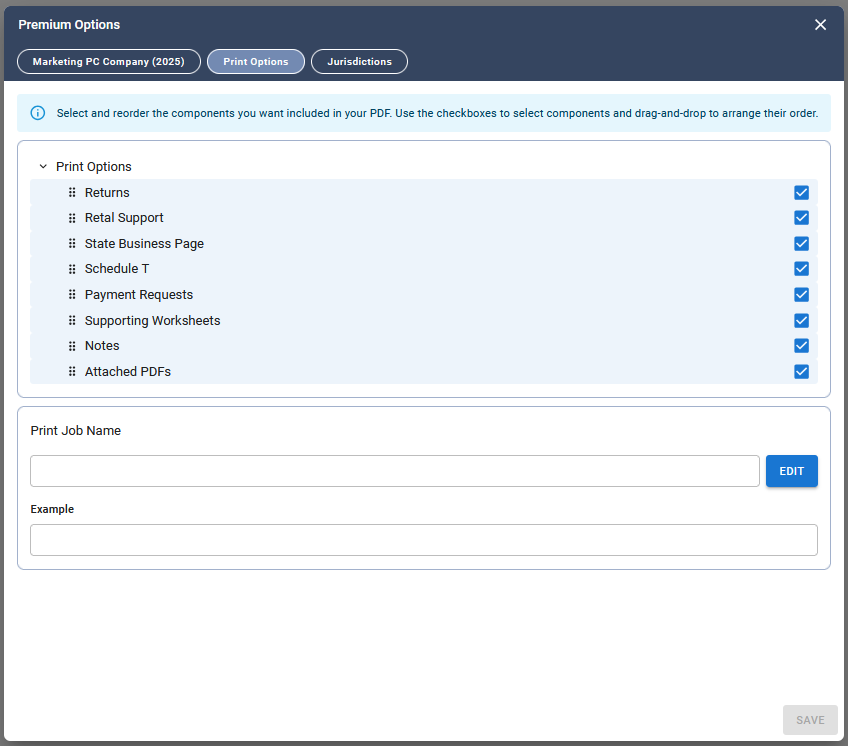
The Print Options tab allows you to choose which pages to include when printing a return and to customize the order in which they appear. Use the checkboxes on the right side of the tab to include or exclude specific pages from the PDF. To change the page order, click the dots icon to the left of a page name and drag it to the desired position.
Print Job Name
The Print Job Name section on the Print Options tab allows you to customize the name that will be assigned to generated print jobs.
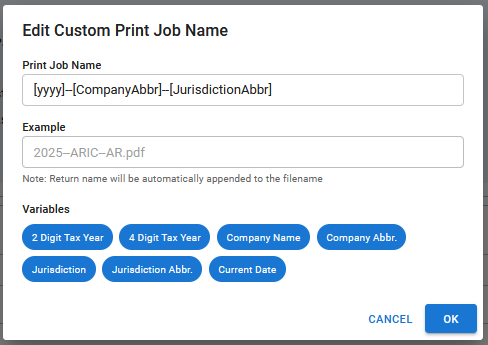
To edit the Print Job Name, click the Edit button located on the right side of the Print Job Name section. A window will open displaying the available variable options, such as 2-Digit Tax Year, 4-Digit Tax Year, Company Name, Jurisdiction, and others.
Select the desired variables and click OK. As variables are selected, a preview example will display below to show how the print job name will appear.
After making your selections, click Save on the Print Options tab. The Save button is located in the bottom right-hand corner of the window. Your changes must be saved before navigating away from the tab.
The Print Options you select will be saved and rollover to next year.
Related Articles